
We have already seen how to follow companies . In addition to receiving a daily e-mail with alert notifications and the chronology of events in the companies timeline, when you access Following in the Insight View header, you obtain a timeline showing all the events that have happened to all the companies and freelancers you follow in chronological order
This article explains:
_______
Parts of the page
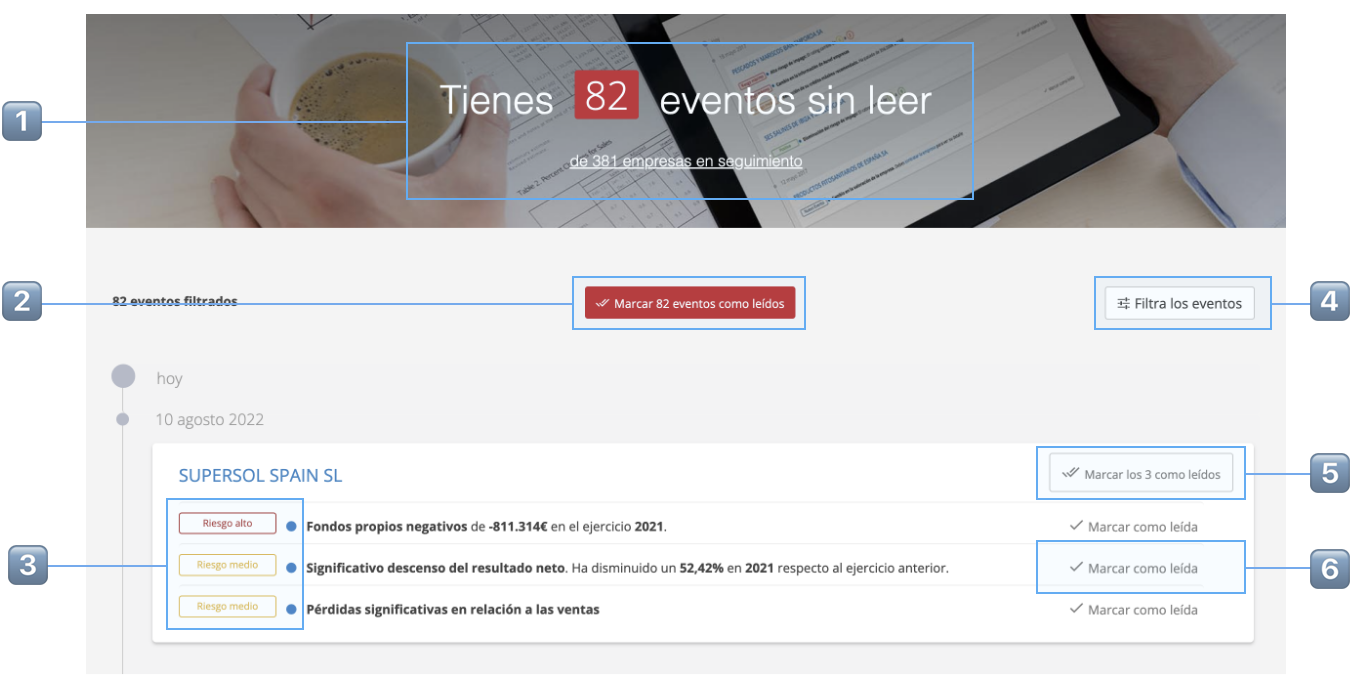
| 1️⃣ | Number of unread events and total number of companies and freelancers you are following. |
| 2️⃣ | Mark all unread events as read (we don't recommend this as you might miss something important) |
| 3️⃣ |
Kind of event. They might be 🔴 High risk, 🟠 Medium risk, 🟢 Positive and ⚫️informative and 🔵 events at non-contracted companies The blue dot next to the kind of event indicates that it is unread. |
| 4️⃣ | Filter events, as described in this article. |
| 5️⃣ | Mark all a company’s events on the same day at once, |
| 6️⃣ | ... or mark them one by one. |
_______
Filter the events
The timeline shows only those events that you want to analyse at each given time using the available filters
For each event, the number of times it has happened is shown.
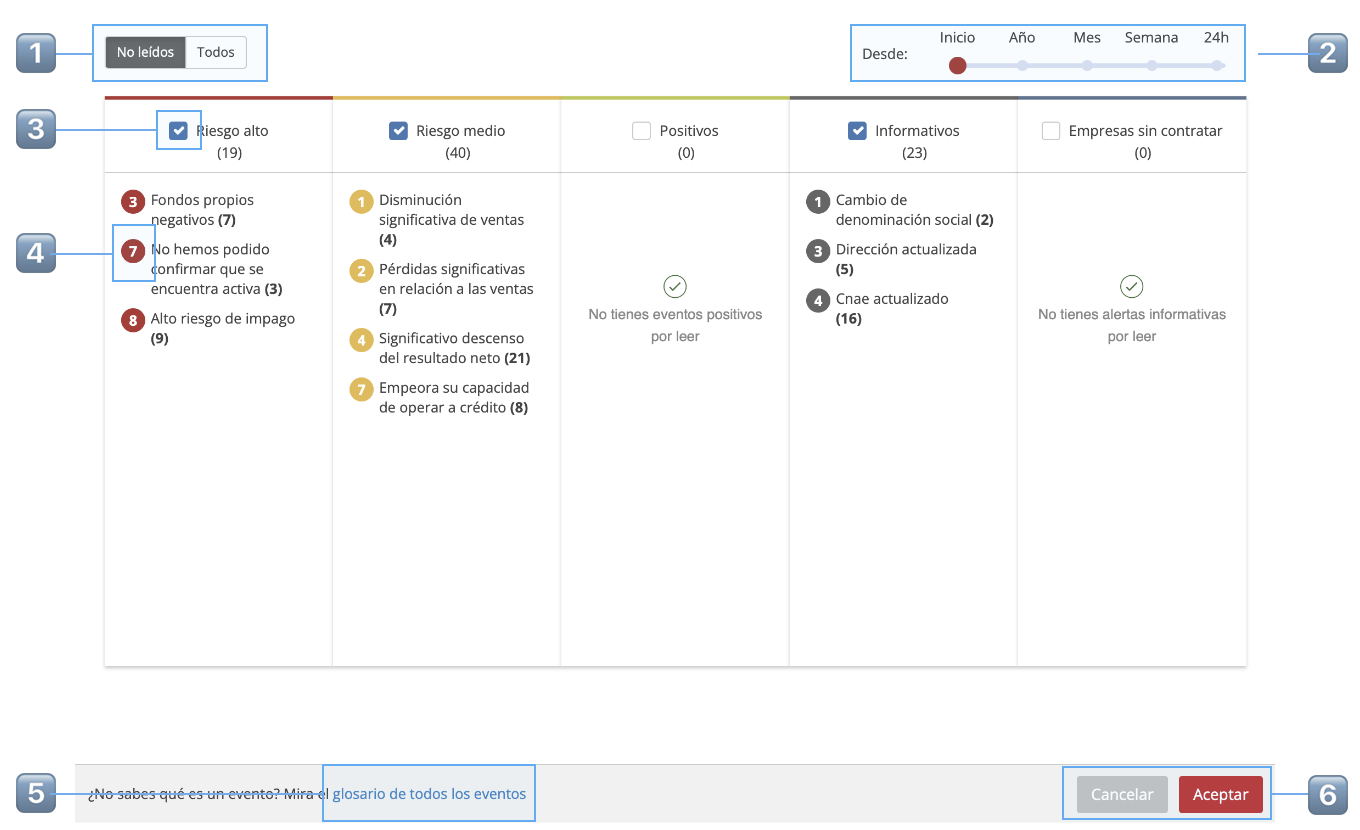
| 1️⃣ | Select whether you want to see only unread events or all of them |
| 2️⃣ | Indicate the time period in which the events have occurred. |
| 3️⃣ |
Select or deselect all the events of a particular kind, |
| 4️⃣ | ... or the events of each kind |
| 5️⃣ | Access the events glossary for details of each one. |
| 6️⃣ | Once you have finished your set-up, click Accept to apply the filters or cancel if you don’t want to apply them. |