
Insight View reports comprise sections of information segmented by type. These sections can be customised, arranged as you like and concealed if they do not interest you.
This article explains the following sections:
_______
Summary outstanding debt graph
| 1️⃣ |
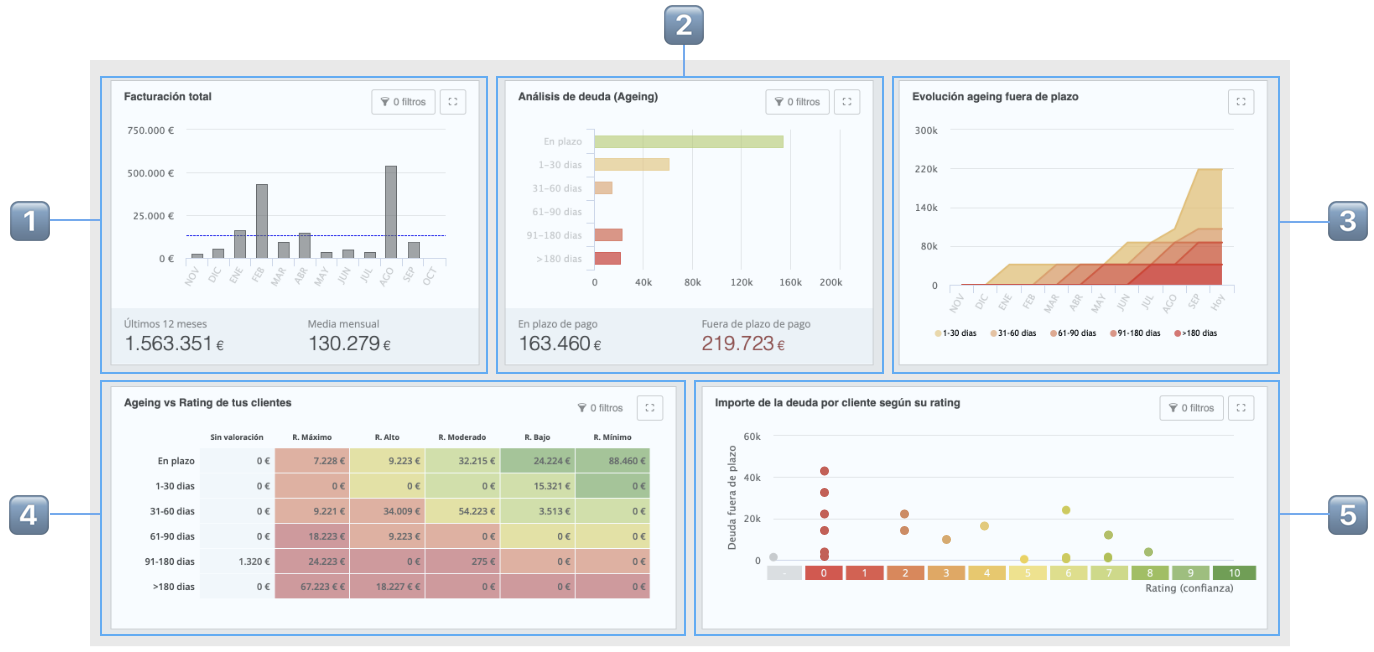
Evolving graph showing your sales performance over the last 12 months, showing the monthly average. This graph is filterable, so if you select one or more specific months, all the other graphs and records will re-calculate with the data for those months. |
| 2️⃣ |
Debt analysis (ageing): This graph shows the entire amount of invoices due, and unpaid invoices by the number of days since they fell due, using a degrading colour scheme from yellow to red. This graph is filterable, so if you select one or more bands of days, all the other graphs and records will recalculate with the data for the chosen band. |
| 3️⃣ | Ageing: In this case only unpaid overdue invoices appear, in the same colours as in the previous graph, so that you can consult its ageing at any time (hover the mouse over the values in the graphs pertaining to the days you are interested in) |
| 4️⃣ |
Matrix crossing the due date against your customers’ rating: EThis graph divides all the invoices by period unpaid and non-payment risk. This graph is filterable, so if you select one or more values, all the other graphs and records will recalculate with the data for the selected value. |
| 5️⃣ |
Total debt by customer’s rating: This graph places a dot with the colour of the debtor customer’s rating at the height corresponding to the entire debt. Click whichever dot you like to see the customer’s name and the total amount of the debt. |
_______
Record of companies with invoices
Companies are shown by the filters selected in the summary graphs. If you filter in ageing or matrix for overdue invoices you will obtain a record of customers who have not met their payment commitments to your company.

| 1️⃣ |
Select the companies from the record for which you want to carry out massive actions |
| 2️⃣ | Options for viewing the record: Arranging companies and selecting the view of the record. Debt is the default view. |
| 3️⃣ | Export the list using Excel with the fields you choose |
_______
Record of your customers’ invoices
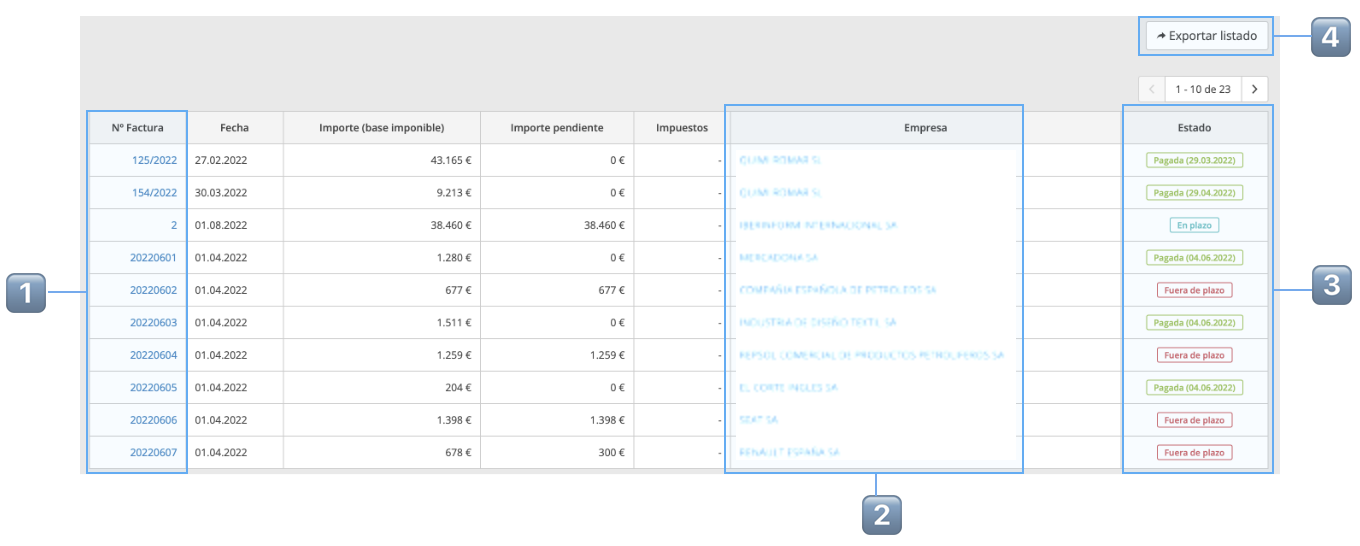
This view shows the invoices by the filters selected in the summary graphs. If you filter by ageing or the overdue invoice matrix you will obtain a record of unpaid invoices.
| 1️⃣ |
Click the invoice number to obtain all the details |
| 2️⃣ |
If a customer has unpaid invoices, we recommend you request iCollect. Click to access the customer debt section, select the unpaid invoices to arrange recovery using the iCollect service as explained in the company report |
| 3️⃣ |
For each invoice, the current balance is show according to the last invoice upload or Sage One |
| 4️⃣ | Export an Excel with the details of each invoice |