
Your prospecting processes are segmentations you carry out in our global Insight database to obtain the best available information on companies and freelancers in an Excel file.
Prospecting requires 5 simple steps:
💡 Discounts are applied according to file size.
_______
Step 1: Select country
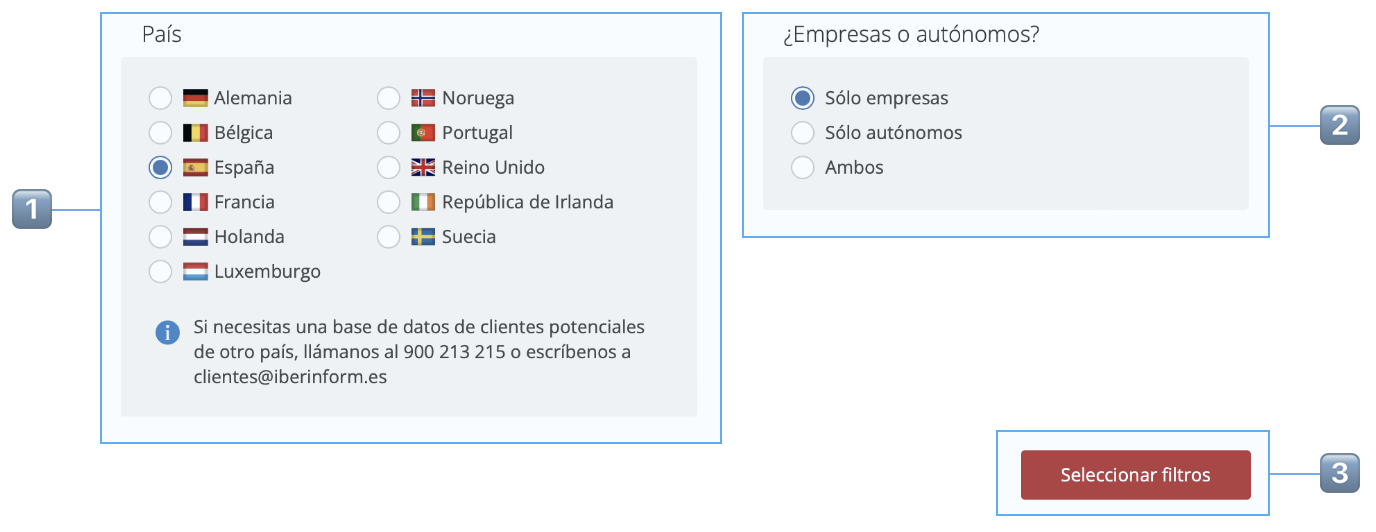
| 1️⃣ | Select a country among the 11 countries available |
| 2️⃣ | If you have selected Spain or Portugal, you must choose whether you want to obtain companies, freelancers or both |
| 3️⃣ | Click Select filters to continue |
_______
Step 2: Filter the database
This is the most important step in your prospecting since, depending on which filters you apply, you will obtain more or fewer candidates.
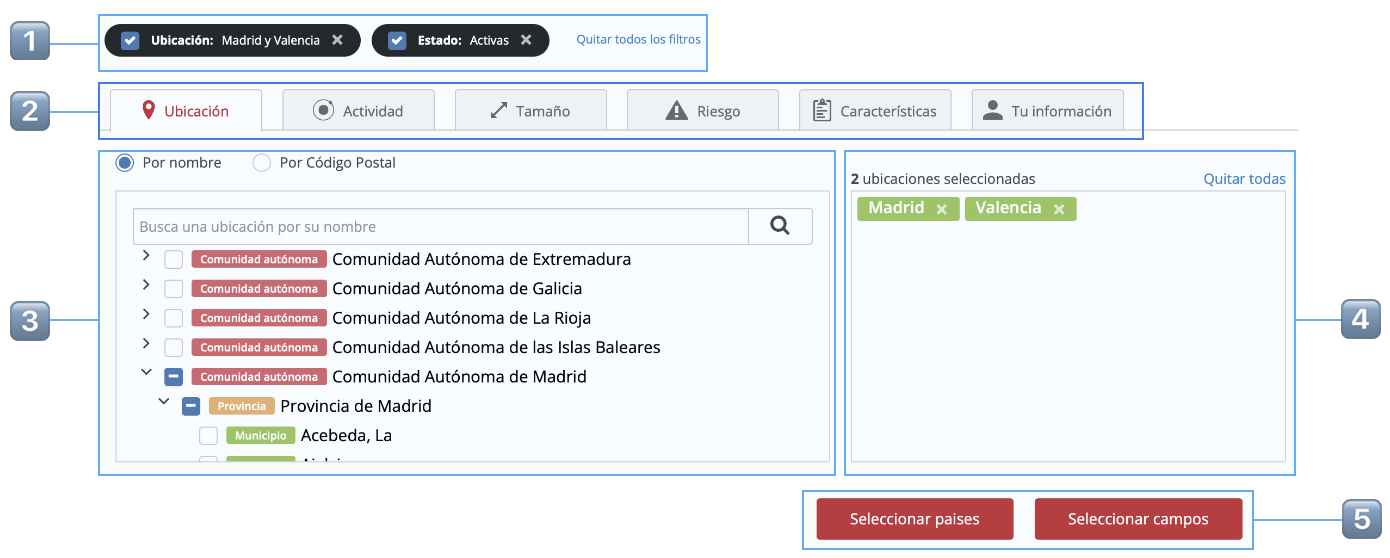
| 1️⃣ | Added filters bar: You can remove or deactivate a filter to see the resulting candidates |
| 2️⃣ | Available filters: We have divided the filters into tabs by its type. Click the tab you choose to add whichever filters you like |
| 3️⃣ | Filter options: In this panel you select or set up filters |
| 4️⃣ | Filters added from the tab: depending on the tab this shows the filters you have added, which you may remove individually or all at once. |
| 5️⃣ | Click Select fields to move to the next step or Select countries to return to the previous step. |
_______
Step 3: Select which fields you want to add to the file
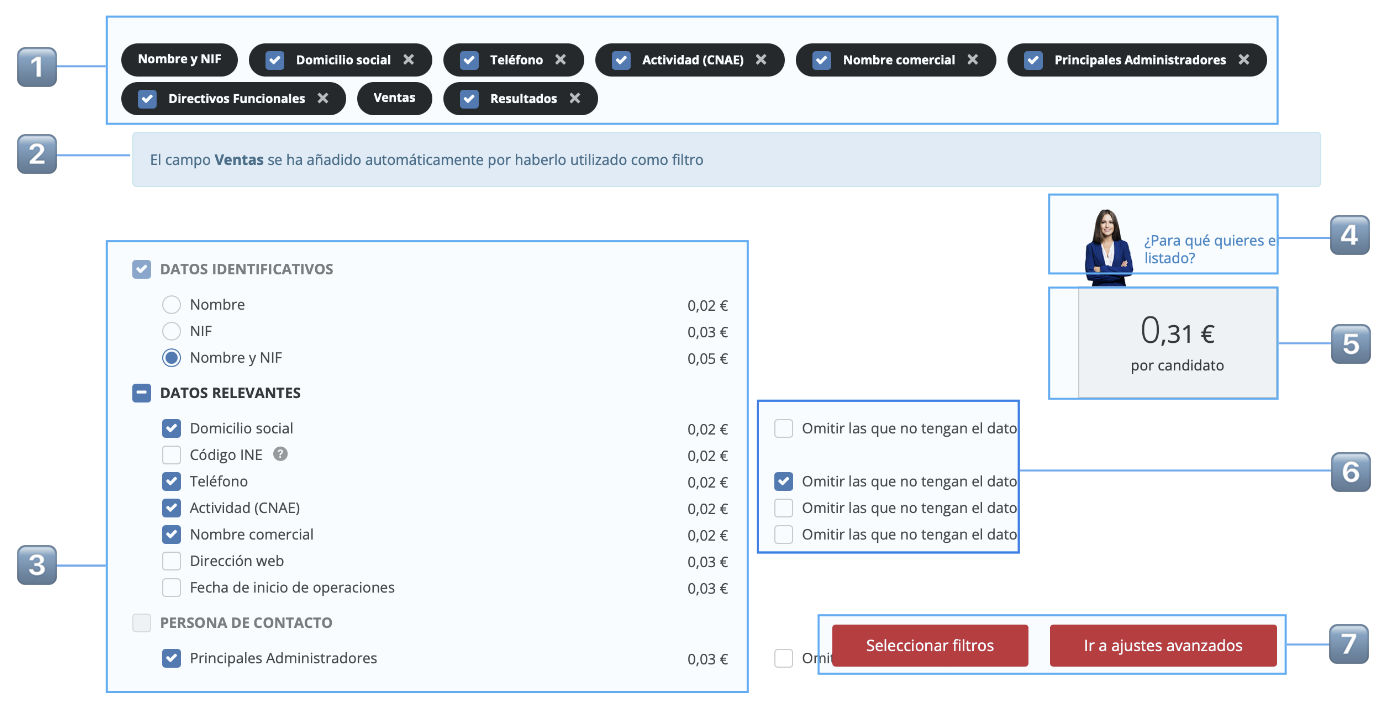
| 1️⃣ | Added fields bar: You can remove or deactivate a field to see the resulting cost per candidate |
| 2️⃣ | Mandatory fields: Fields added automatically to your record and you cannot deactivate them since you have used them to filter the database. |
| 3️⃣ | Field selection: Arranged by type, add the fields you need |
| 4️⃣ | Field selection wizard: We help you select fields according to what you need the file for. |
| 5️⃣ | Cost per candidate: The price resulting from adding together all the chosen fields. |
| 6️⃣ | Cost per candidate: The price resulting from adding together all the chosen fields. |
| 7️⃣ | Click Go to advanced settings for the next step or Select filter to return to the previous step. |
_______
Step 4: Configure the file with advance settings
Before downloading the file you can add new filters
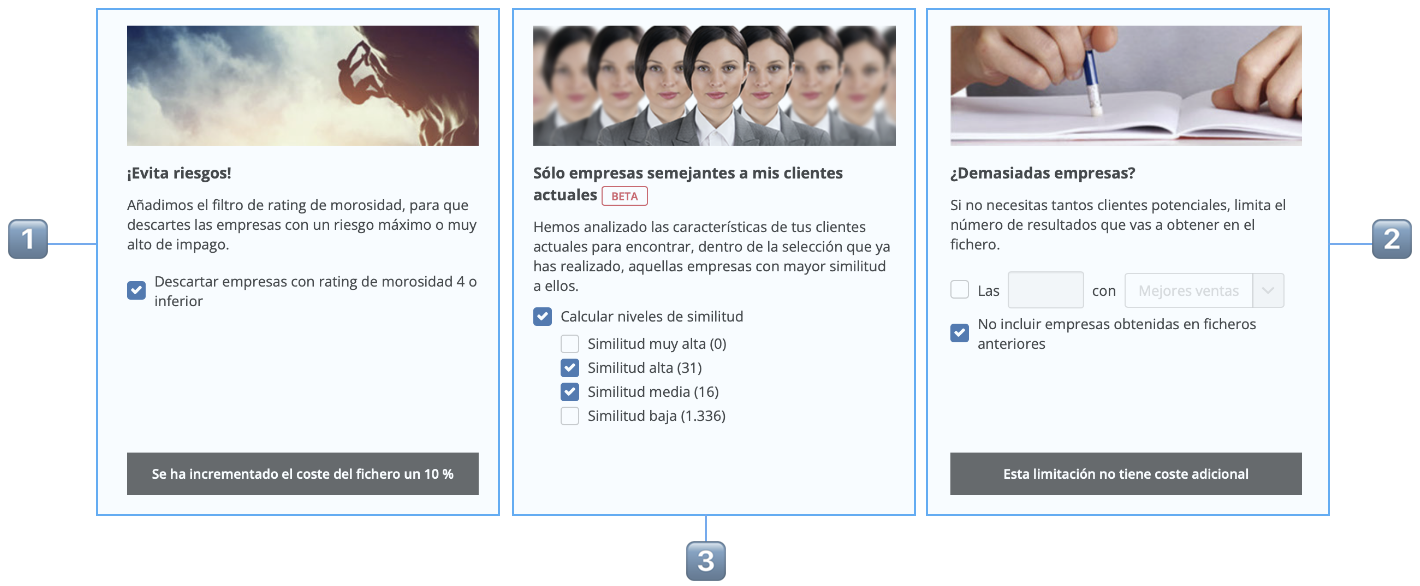
| 1️⃣ | Avoid risks: You can select the rating filter in step 2 or rule out companies with a rating of 4 or lower, which indicates non-payment risk probability. This selection increases the cost of the file by 10% |
| 2️⃣ | Twins: Insight View analyses all the companies you have tagged as customers and shows you 4 levels of similarity and the candidates for each level. This way you can download companies that are more or less similar to your current customers. |
| 3️⃣ |
Reduce the number of companies: Limit the list to the number of companies you want in the order you indicate and/or do not include companies already exported in prospecting in the last 12 months. |
_______
Step 5: Contract and download your prospecting in Excel
You’re almost there. Check everything is correct and download the file.

| 1️⃣ | Record name: Change the name and add a comment if you wish. This is optional and you may do so now or click Download file. |
| 2️⃣ | Summary of your prospecting: Number of prospects, filters applied, fields selected and number of advanced settings. |
| 3️⃣ |
Cost of the prospecting and discount applied: The price shown includes the discount, which is applied from a certain number of prospects and fields and is higher the higher the cost of the file. If you do not have enough credit on your voucher you will be informed so that you can contact your Insight View advisor |
| 4️⃣ |
Download file: An emerging window opens with information on the price to be discounted from your voucher and the option to change the name and add a comment. All prospecting processes carried out are saved in your prospecting, so that you can download them at any time, as explained in this article. |