
Insight View reports comprise sections of information segmented by type.
This article explains the following sections:
- Header and task bar
- Summary
- Timeline
- Finance
- Researched information
- Risk or Rating
- Debt (owed to your company)
- Payment incidents
- Credit transaction admissions
- Relationships
- Directors
- Branches
- Brands
- Mercantile Register Official Bulletin
- Additional information
- Contracted
The order and visibility may not coincide with your report in Insight View and, as we have explained, they are customisable by the user.
Other relevant report items:
Customisation of online report
Customisation of PDF report
Report export in PDF or Excel
Report comparison.
_______
Header and task bar

| 1️⃣ | Company name, showing the number of unread events |
| 2️⃣ | Key data: including whether a company is active, your relationship with the company (customer, prospect, competitor or supplier), which you can actually change from here, and whether the most recent financial year in Insight View is the same as in the Mercantile Register |
| 3️⃣ | If there is researched information available on the company, the interview date is shown along with a link to the section |
| 4️⃣ | Menu, active section and rating colour: Access the sections menu from the menu icon, check which section you are in and, since this bar is always visible at the top of your browser, you can tell the company’s rating by colour. |
| 5️⃣ | Tasks available: Follow the company so as not to miss anything, add it to lists, export the report and more tasks (add to comparison, highlight or see what you have contracted) |
_______
Summary
This section shows a summary of the highlights of the rest of the company’s sections, for information purposes.
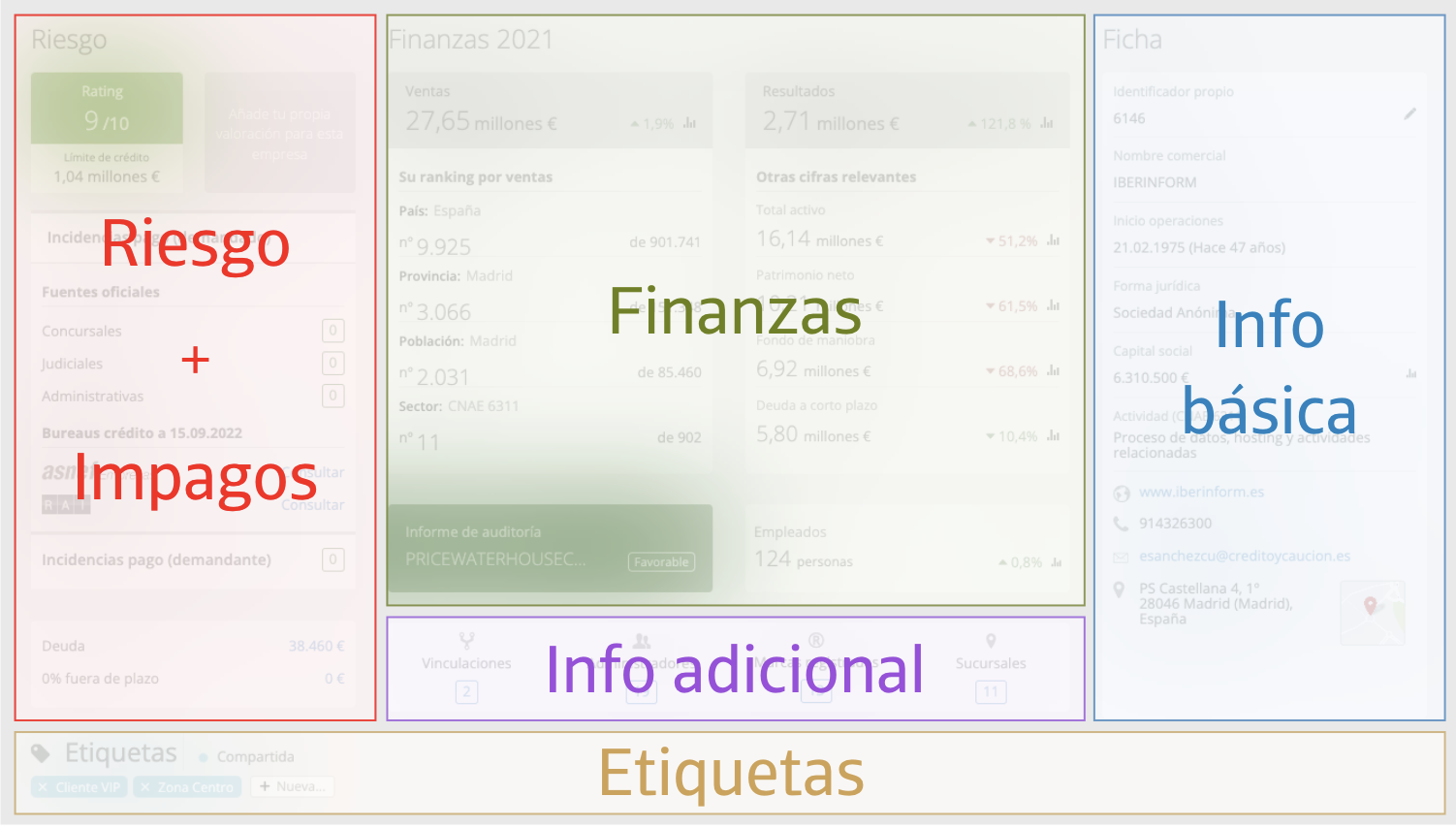
Highlighted summary tasks available:
- At risk: Direct access to the contracting of ASNEF Empresas and RAI
- In Basic information: Editing of the own identifier (customer or supplier number)
- Links to different sections (evolution of share capital, business relationships, branches, and so on)
- Tags: Add tags you can use to filter searches, create company records, etc.
_______
Timeline
This section includes all the risk events (high and medium), positive and informative events tracked in Insight View in chronological order.
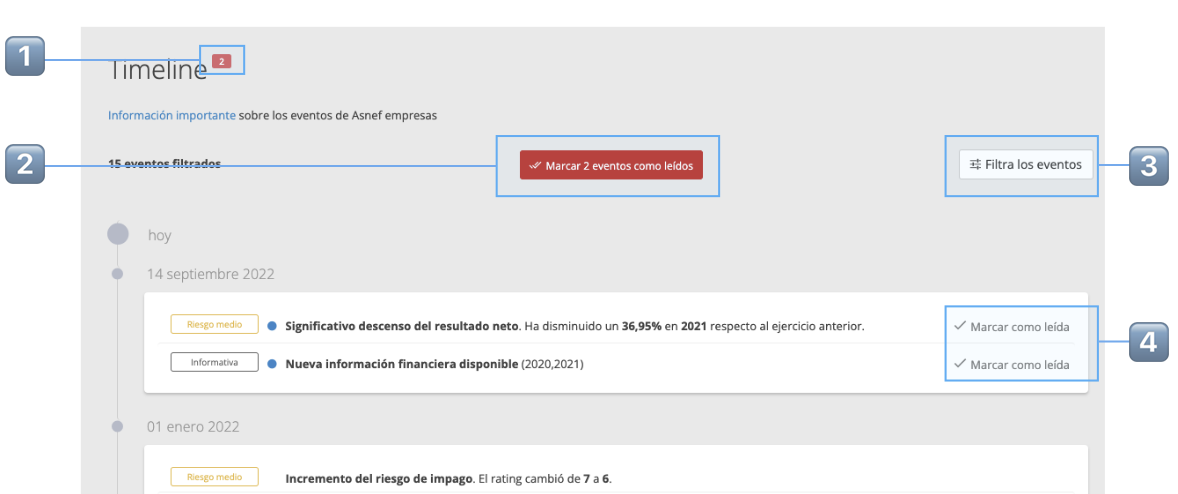
| 1️⃣ | Events not marked as read (they also appear in the header) |
| 2️⃣ | Filter the events to show only the ones you want. |
| 3️⃣ | Mark all unread events for this companyMarca todos los eventos no leídos de esta empresa |
| 4️⃣ | ... or mark them one by one to the right of each event (the blue dot to the left of the event indicates that it is unread) |
_______
Finance
Information taken from the annual financial statements submitted by companies to the Mercantile Register. This section shows you how the company is performing in terms of both its financial figures and its operations on a year-to-year basis.
The financial information is divided into sub-sections, which we select in the upper menu.
| ⚠️ | For companies presenting consolidated financial statements the option to select between individual and consolidated is available to the right of the top menu: |
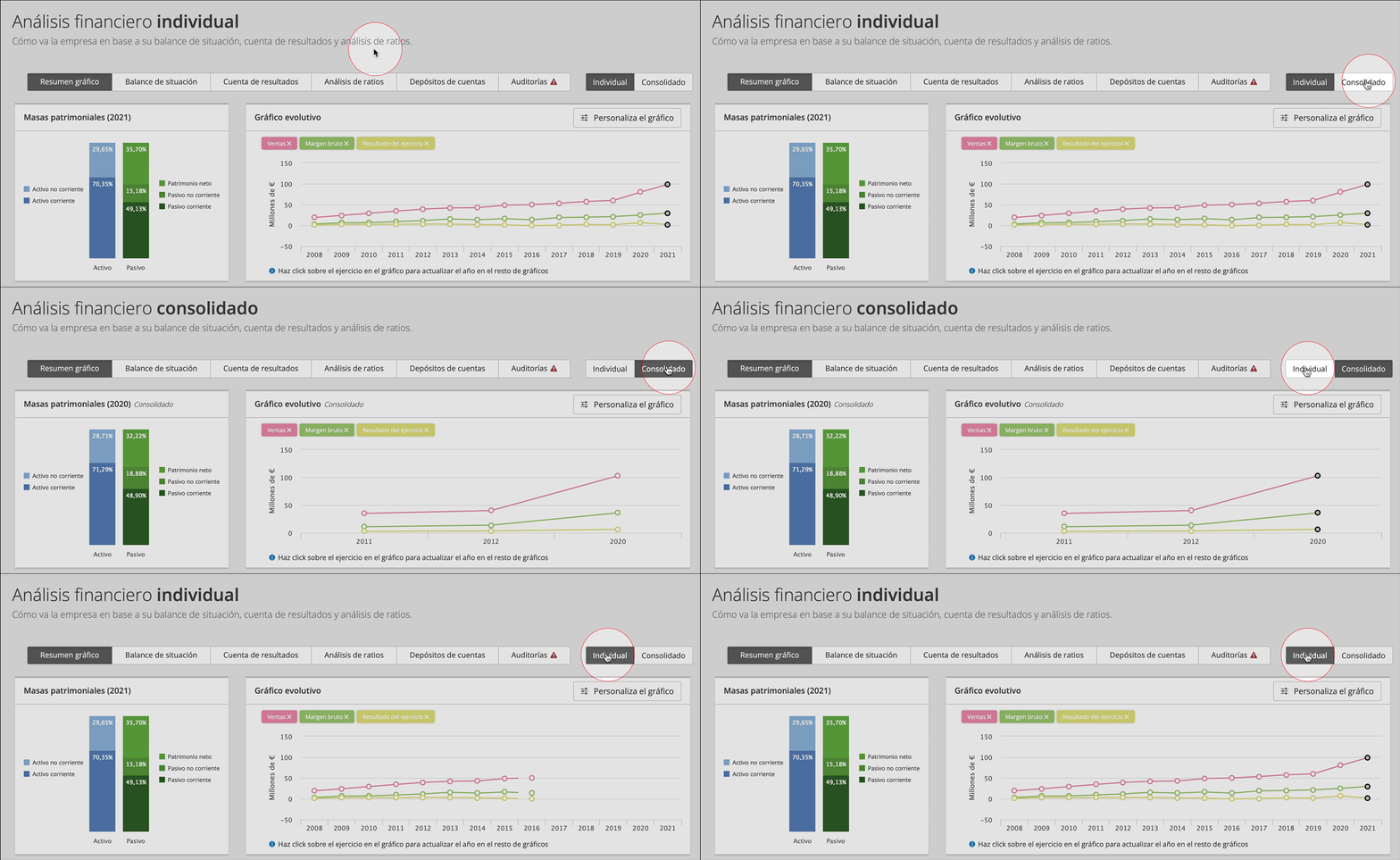
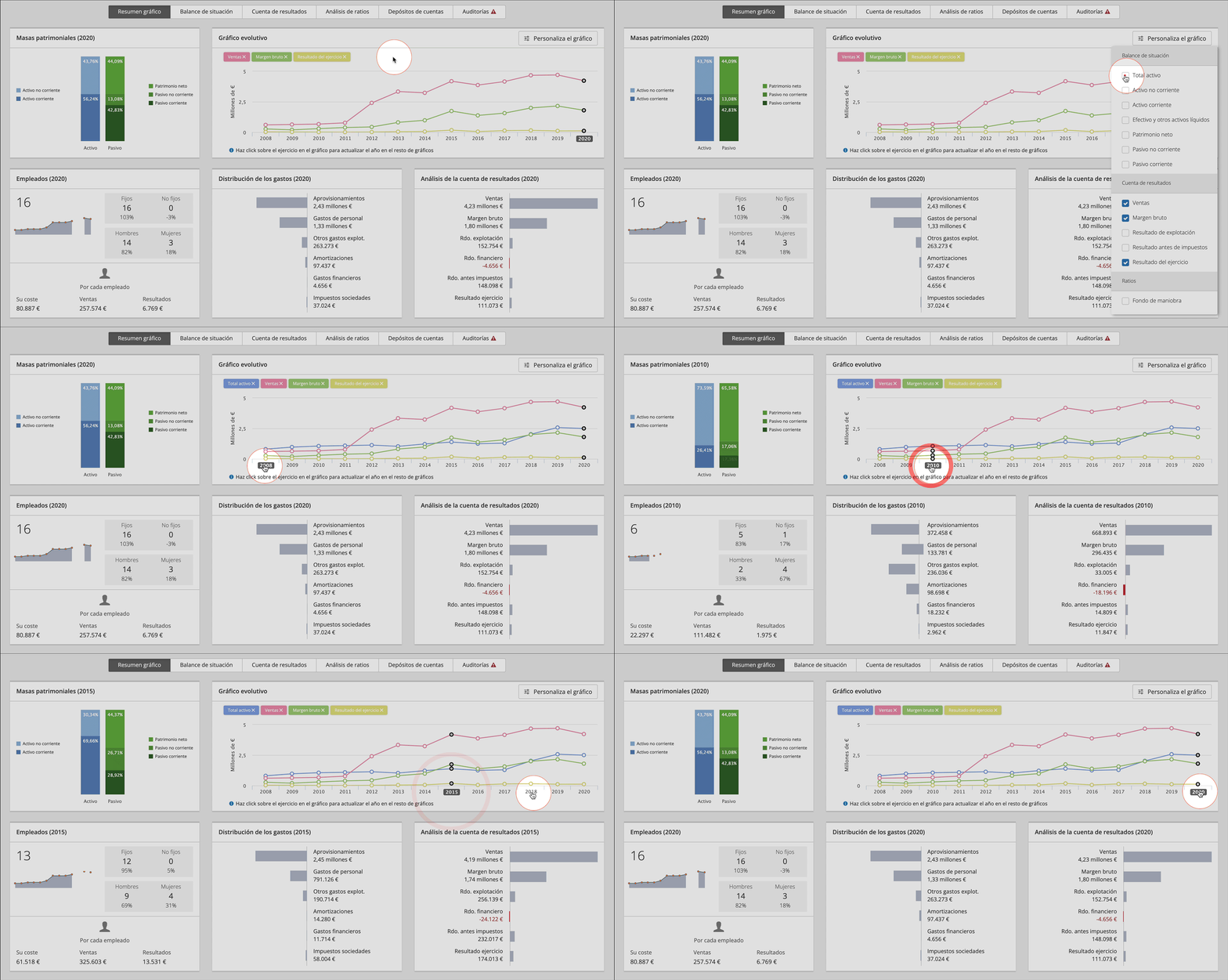
Graph summary
- Customise the Evolving graph by adding or removing fields
- Change the selected graph year in the Evolving graph.
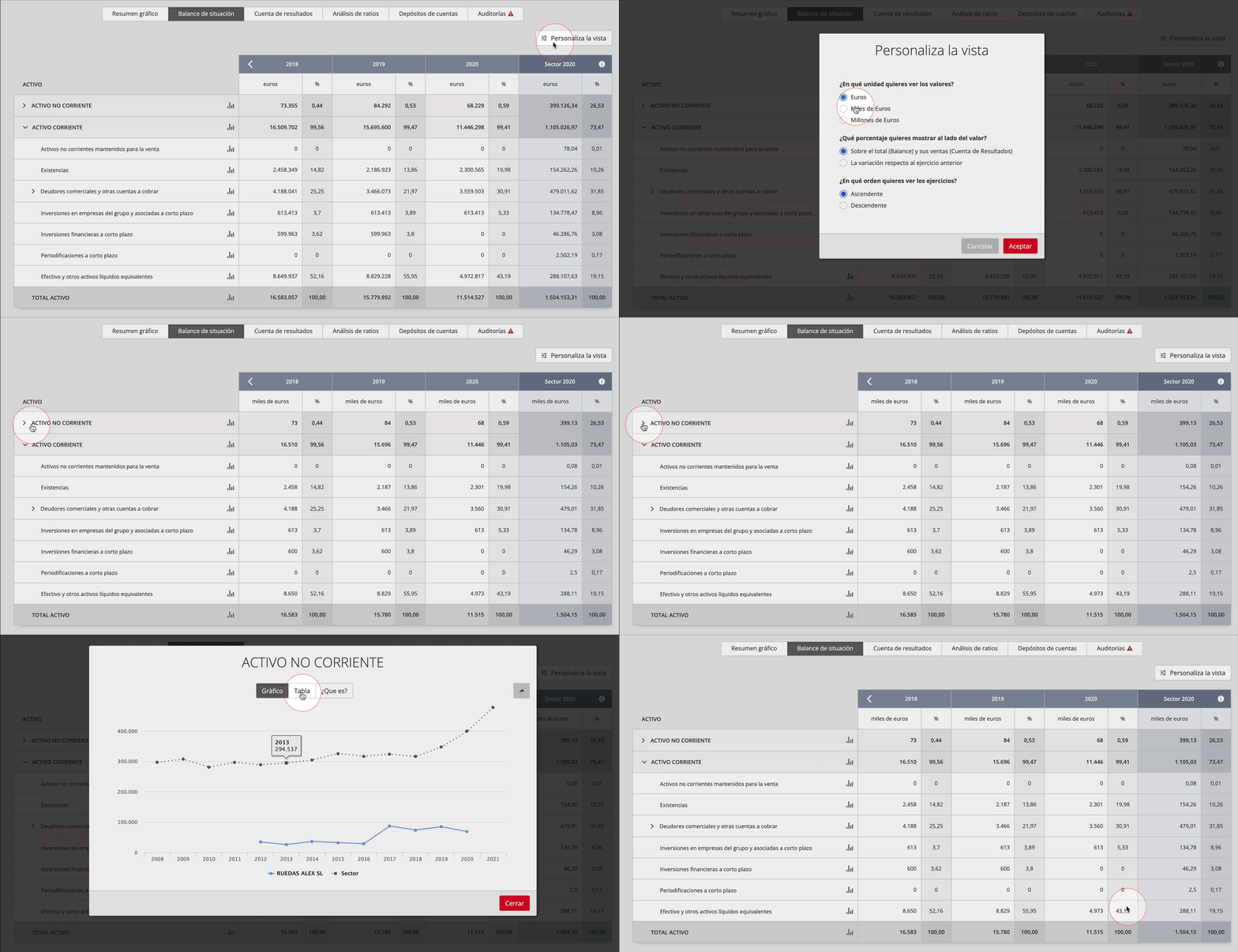
Balance sheet and income statement
- Customise the view (unit, order of financial years and percentage variation)
- Show or hide sub-heading items
- Consult an evolving graph and an explanation of the item
- Compare the company with the average data for its sector (according to CNAE)
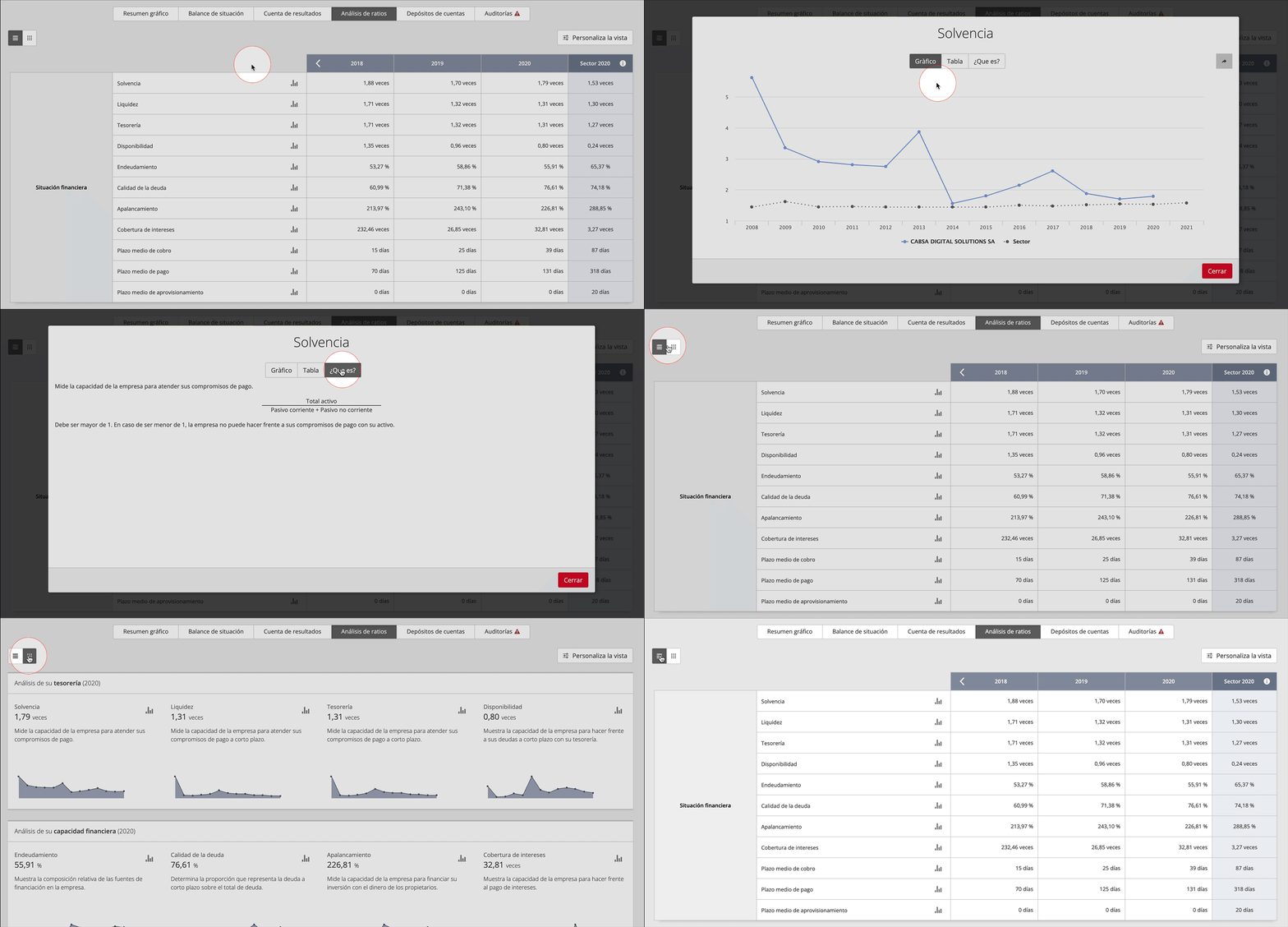
Ratio analysis
- Click the graph next to each ratio for more information (Graph, table and explanation)
- Toggle between record view or graph view
- In record view you can customise the unit and order of the financial years
Accounts deposits
These contain the minutes of the shareholders’ meeting, the annual report, management report, auditor’s report and the annual financial statements.
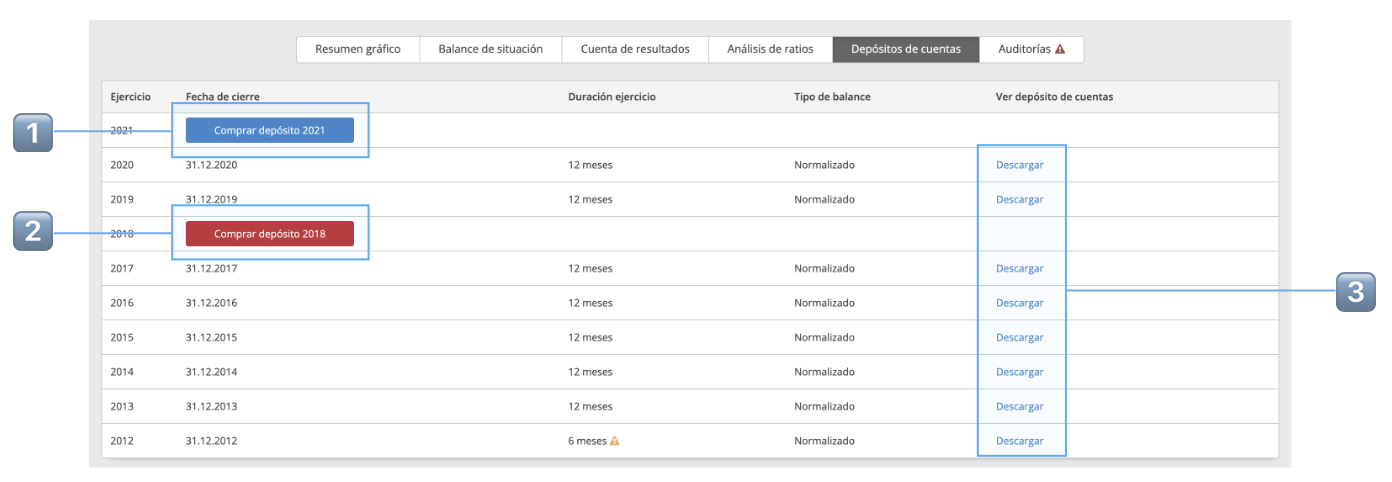
| 1️⃣ | Blue button: We have no record of this account deposit being available but you can ask us to send a query and purchase it if it is. |
| 2️⃣ | Red button: They are available in the Register and we can purchase them if you so wish. |
| 3️⃣ | Link to download the deposit for each financial year |
Audit
In accordance with a company’s size, they are obliged to audit its financial statements. In this section you may consult:
- Who audited the financial statements
- The auditor’s opinion
- The audit’s cost to the company
- Download link
_______
Researched information
Iberinform interviews hundreds of thousands of companies every year to obtain additional information to that available in public sources.
The information it obtains is shown under various tabs and it varies from one company to the next, since it depends on the data that the company has supplied in the interview or the interviewer during their visit. It is even possible that a company has chosen not to give any information.
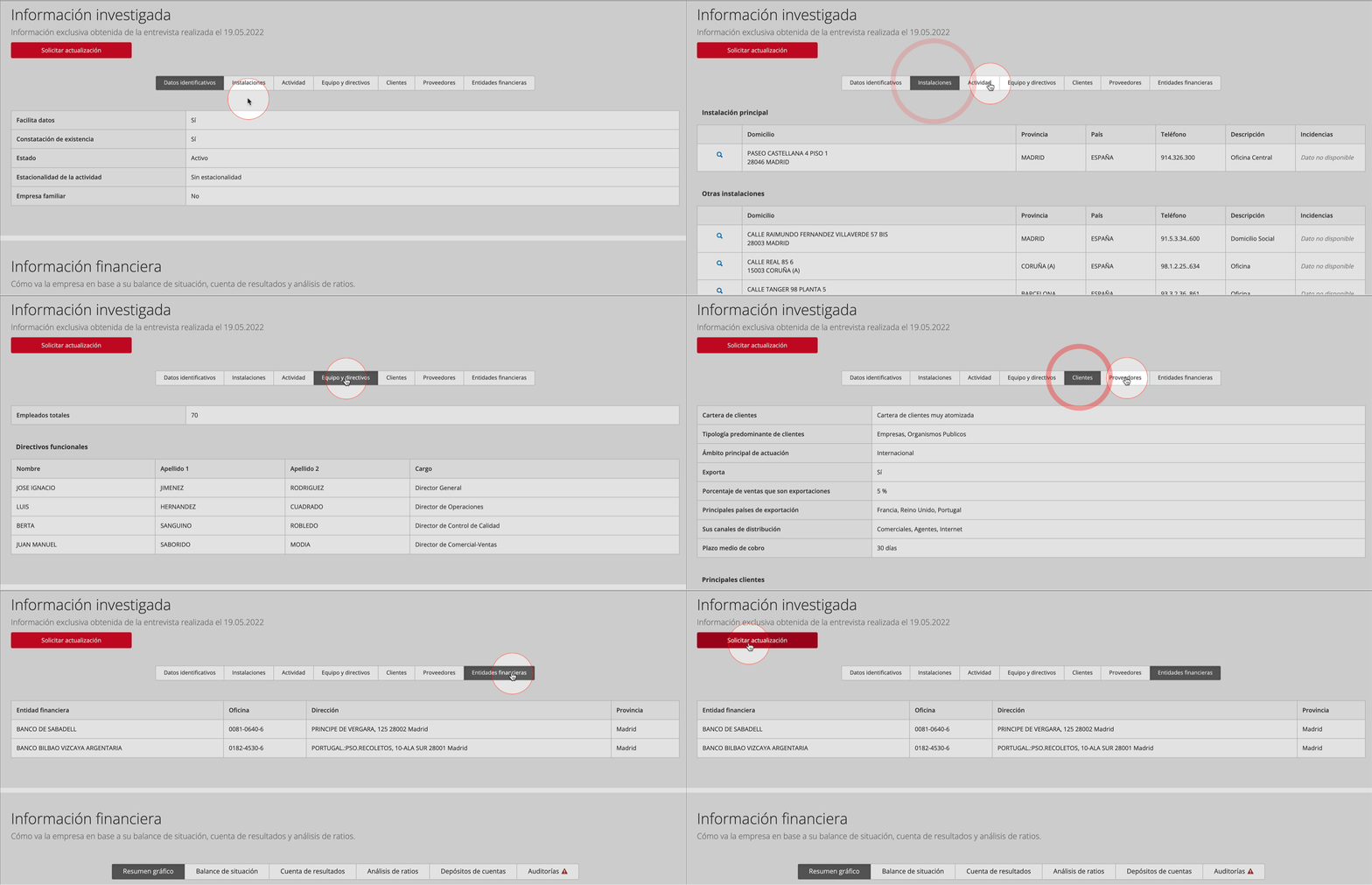
The button under the section name has two options:
- If it is not researched, ask for it to be researched.
- If there are indications that the information might be obsolete, ask for an update
_______
Risk (or company rating)
Iberinform's Non-Payment Rating forecasts the probability of a company or freelancer meeting their payment commitments in the next twelve months.
The rating uses the following scale from 0 to 10:

In addition to the rating, Iberinform shows you the maximum recommended risk limit
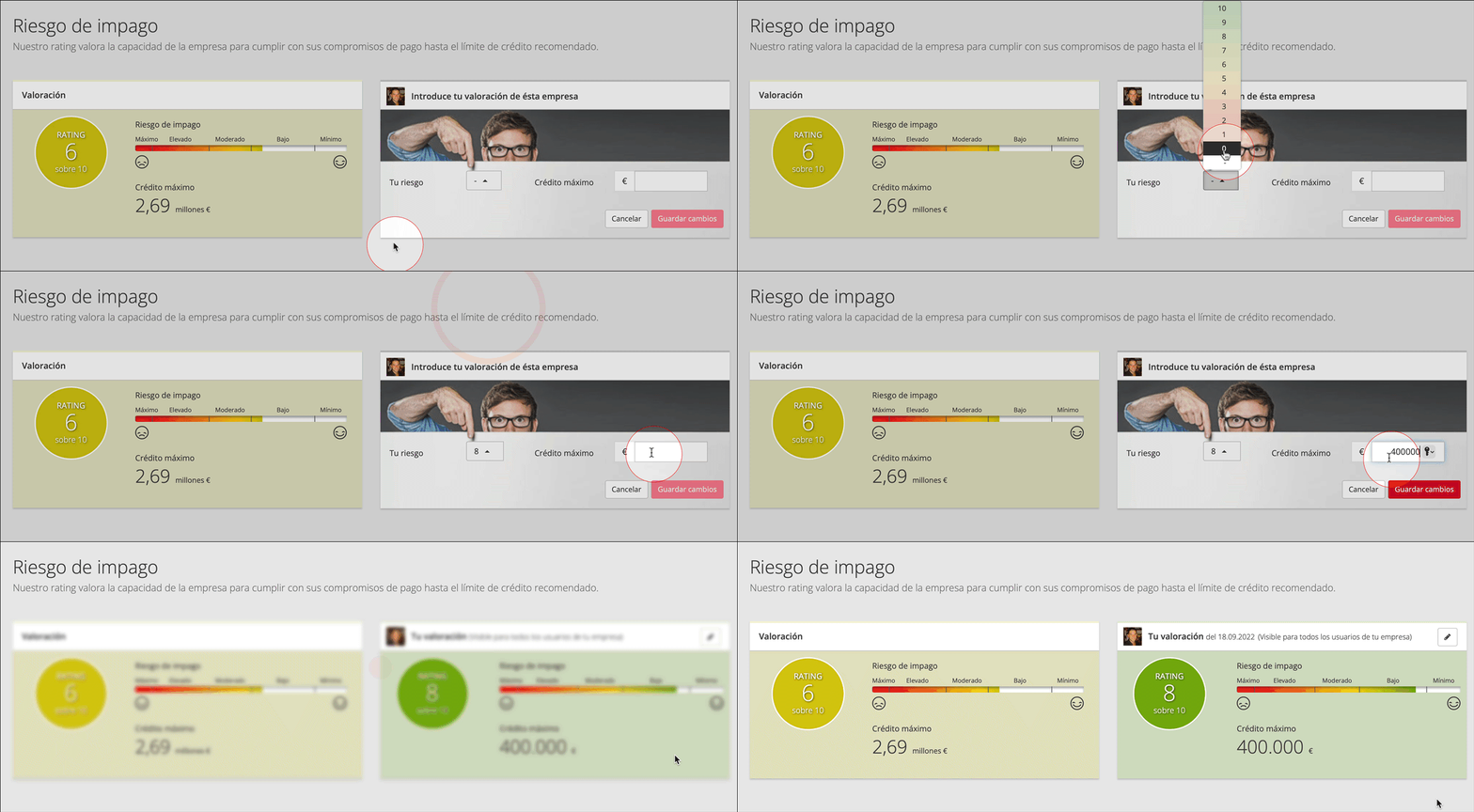
Add your rating of companies
Users from your company with the appropriate permissions may rate companies and add their own non-payment rating as well as a credit limit. This rating is only available to users from your company and will be visible in the report, in the risk view of the records and in exports.
_______
Debt (owed to your company)
🚫 Function not available for LITE users
Analysis of the payment status of invoices issued to this customer, with an indication of the time that has elapsed since they fell due.
⚠️
This section only offers information if you have uploaded your invoices to Insight View.
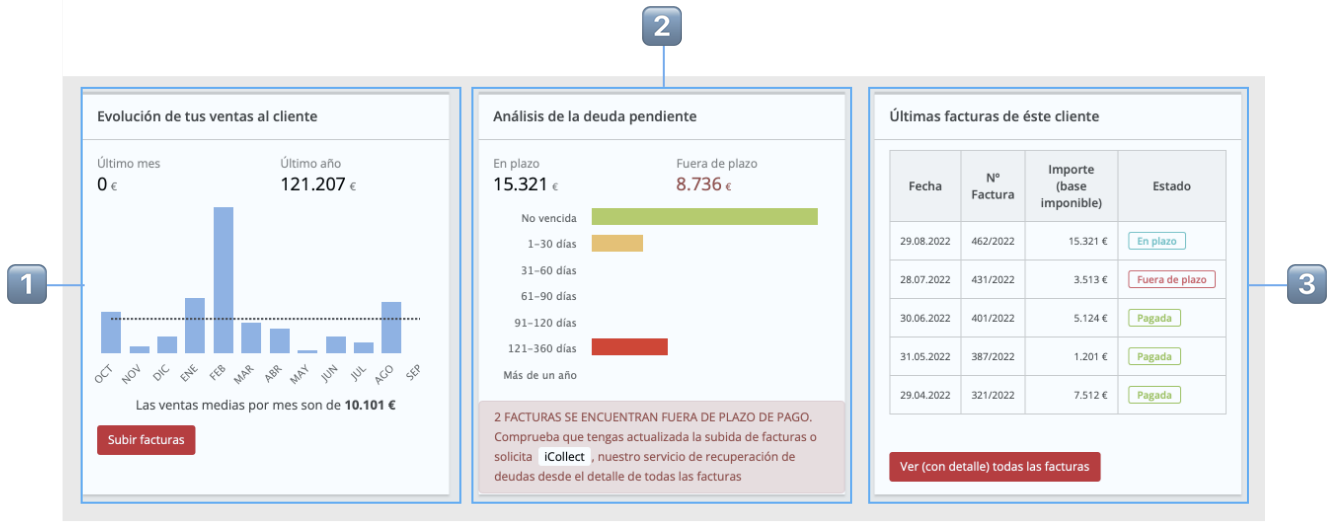
| 1️⃣ | Monthly performance of your sales to the customer including total and average sales. |
| 2️⃣ | Ageing shows you the debt by bands of overdue dates |
| 3️⃣ | Access the record of all invoices using the button. |
iCollect debt collection service
Request the recovery of unpaid overdue invoices as follows:
- Click "See all invoices (in detail)"
- Click ··· to the right of the unpaid invoice(s) and select "Select iCollect collection"
- Complete the collection request form
- Before your request you will see a quote for the iCollect service.
_______
Payment incidents
Overdue invoice payment incidents are divided into two types according to its source:
- Official: Insolvency proceedings, judicial incidents and administrative claims.
- Credit bureaux: Access to ASNEF Empresas and RAI
Official incidents are free if you have contracted the company but those of credit bureaux carry an additional cost, it being possible to contract unlimited ASNEF Empresa consultations for 1 year or to conduct standalone ASNEF and/or RAI consultations.
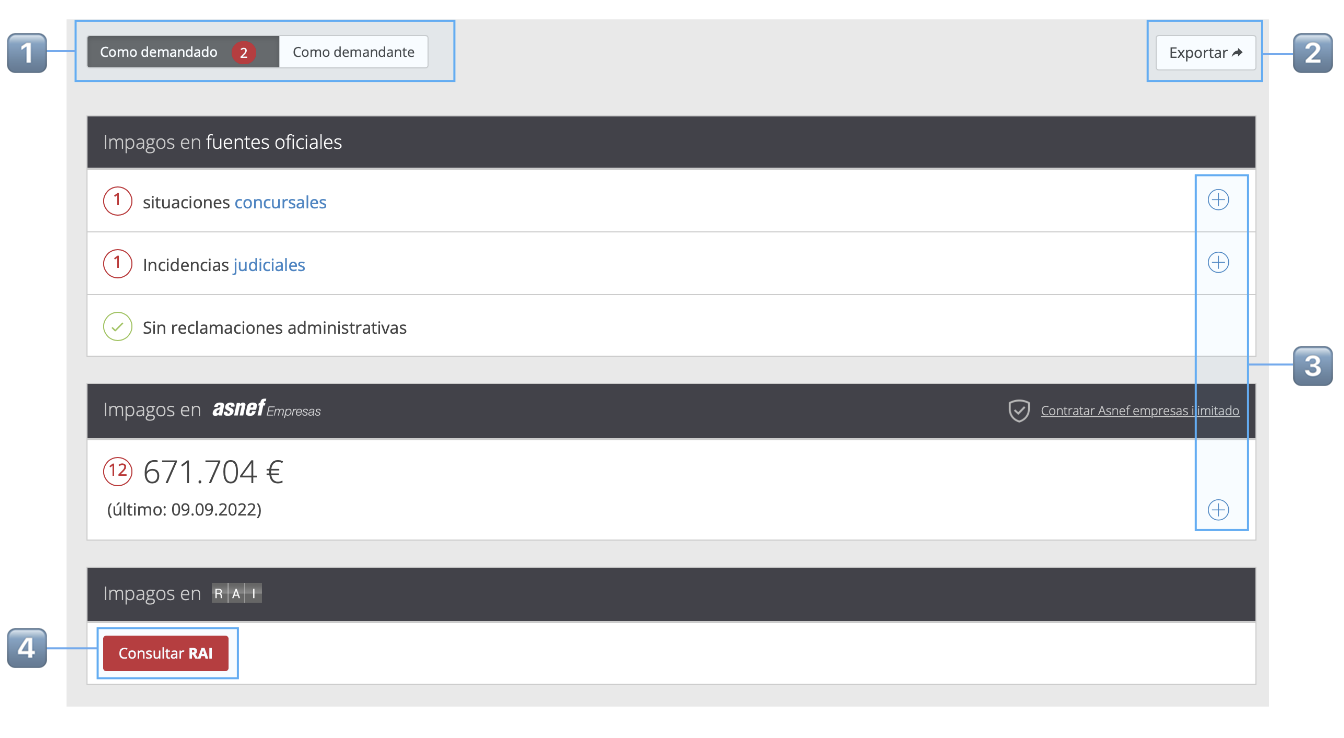
| 1️⃣ |
Selector of incidents as defendant (the analysed company has defaulted on invoices) or as plaintiff (one of the company’s customer's has defaulted on invoices) |
| 2️⃣ | Export a PDF summary of judicial incidents |
| 3️⃣ | Click the + icon for details of each kind of incident |
| 4️⃣ | Access button to contract ASNEF and/or RAI |
_______
Credit transaction admissions
Insight View, having analysed your customer's credit capacity and details of the credit transaction, will recommend you to sell or not.
Iberinform does not accept any liability when offering its opinion.
How to create a new admission
- Click New Admission
- The first screen shows important information on your customer and a form to enter the transaction details. Enter them and hit Next
- Insight View’s intelligence offers you its opinion and a series of reasons. Click Next
- Indicate whether or not you accept the transaction to that it is registered in the record of admissions for this customer.
_______
Business relationships
Business relationships show:
- Which companies are shareholders of the analysed company
- In which companies does the analysed company hold shares (own a stake in its share capital)
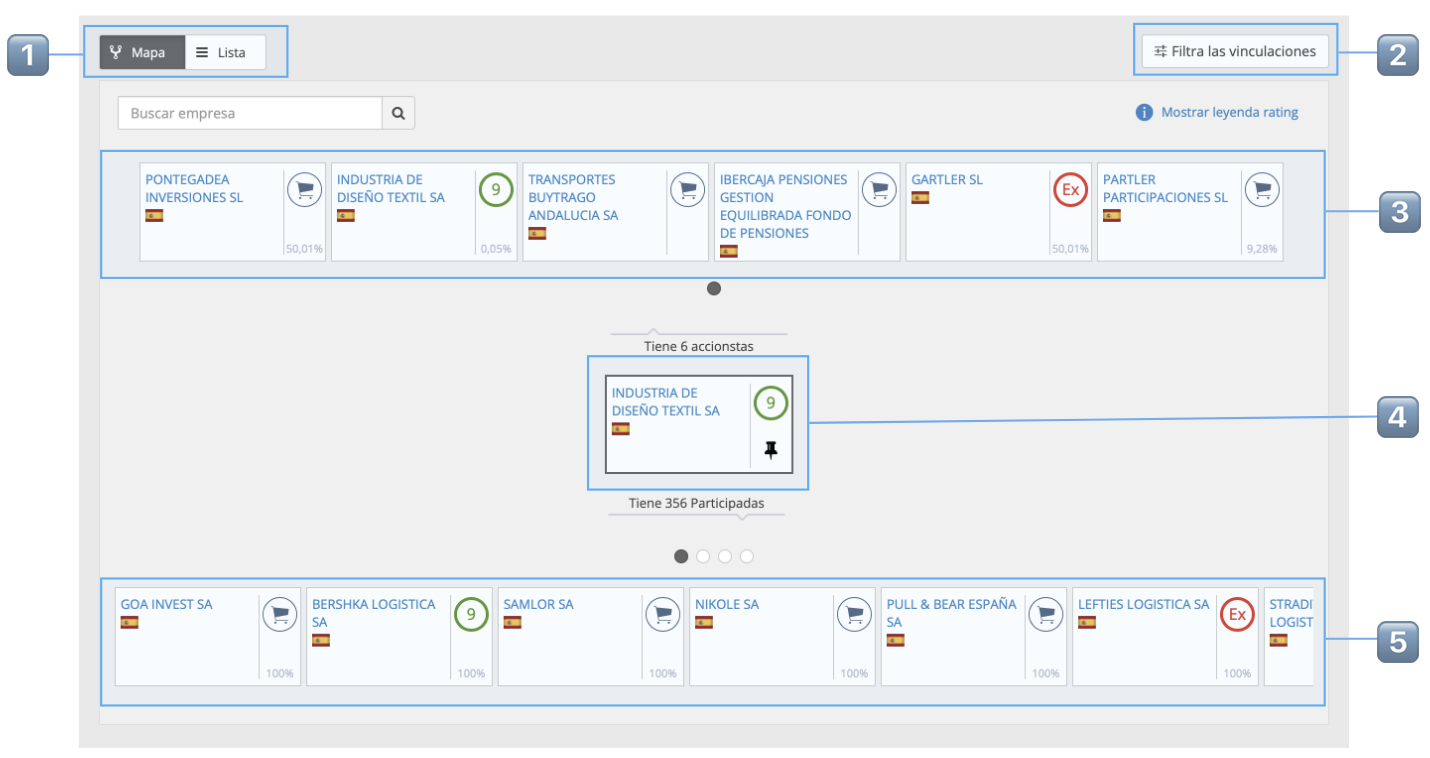
| 1️⃣ | Toggle between map and record view |
| 2️⃣ | Filter relationships by percentage stake and hide relationships obtained from sources or companies other than the company’s own annual report. |
| 3️⃣ | Companies that are shareholders of the analysed company |
| 4️⃣ | The analysed company. |
| 5️⃣ | Companies in which the analysed company is a shareholder (holds a stake in its share capital) |
Card of the related company:
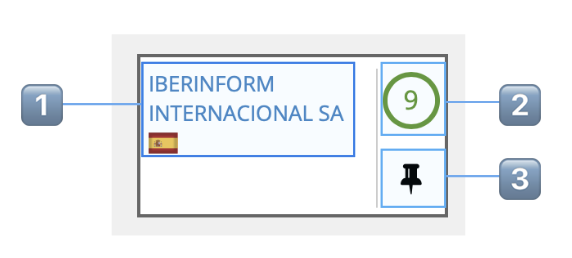
| 1️⃣ | Company name and country. Click the name to access its file to see the information and the various available tasks |
| 2️⃣ | Company rating. If it is not contracted, direct access to contract it. |
| 3️⃣ | Indicates that it is the company whose business relationships are being viewed. In the file for the rest of companies you have the option to change the baseline company. |
_______
Directors
The main directors and senior management:
- Active
- Terminated or revoked
For each director, their post, name, appointment date, time in office and (for past officers) date of termination are provided.
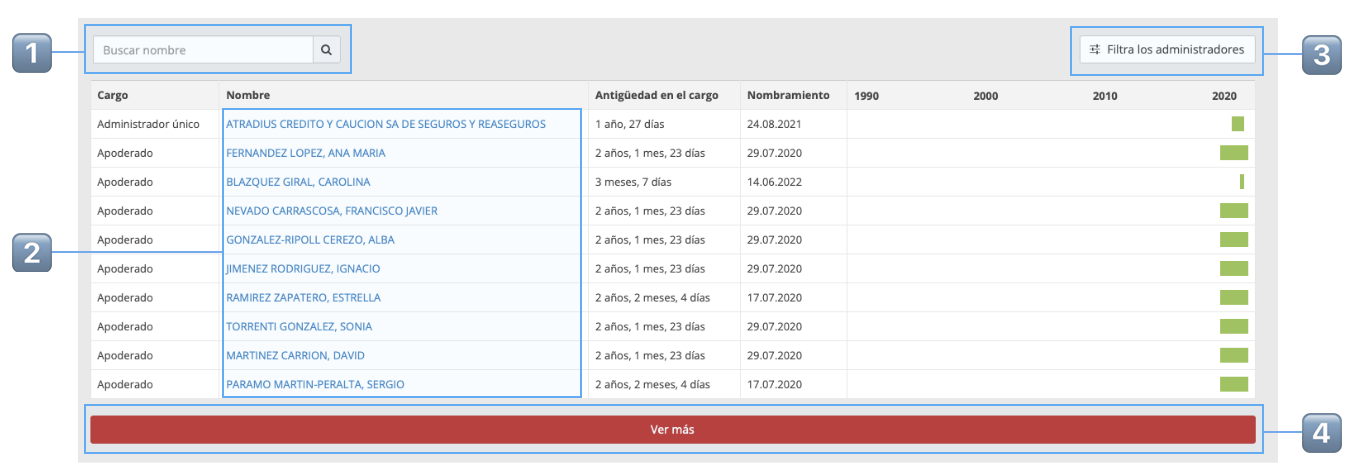
| 1️⃣ | Search by name among the company’s directors |
| 2️⃣ | Click a director to find out what other companies they might be a director of, including, for each company, the probability of it being the same person (for privacy reasons directors’ National Identity Card are not provided) |
| 3️⃣ | Filter by position, date and whether they are active or past directors |
| 4️⃣ | Click to see the next 10 |
_______
Branches
This section shows you the addresses where we have a record of the company having its registered office and its branches, to ascertain its territorial presence
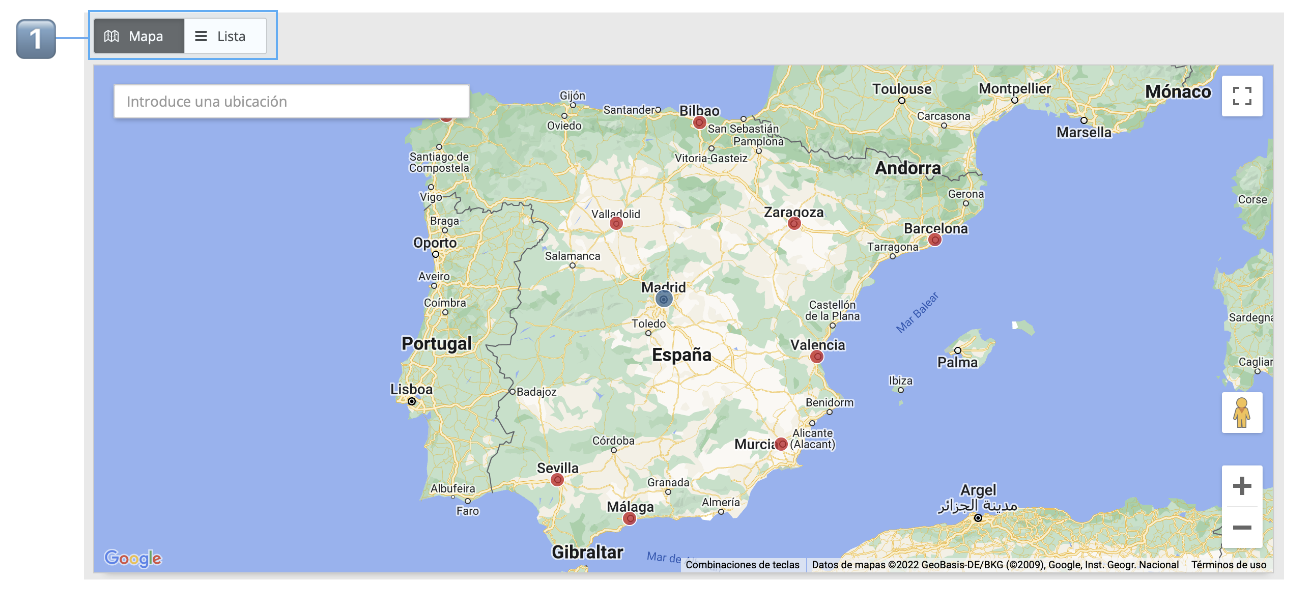
| 1️⃣ | Select map or record view. |
_______
Trademarks
Know all the brands and trade names registered in the Spanish Patents and Brands Office.
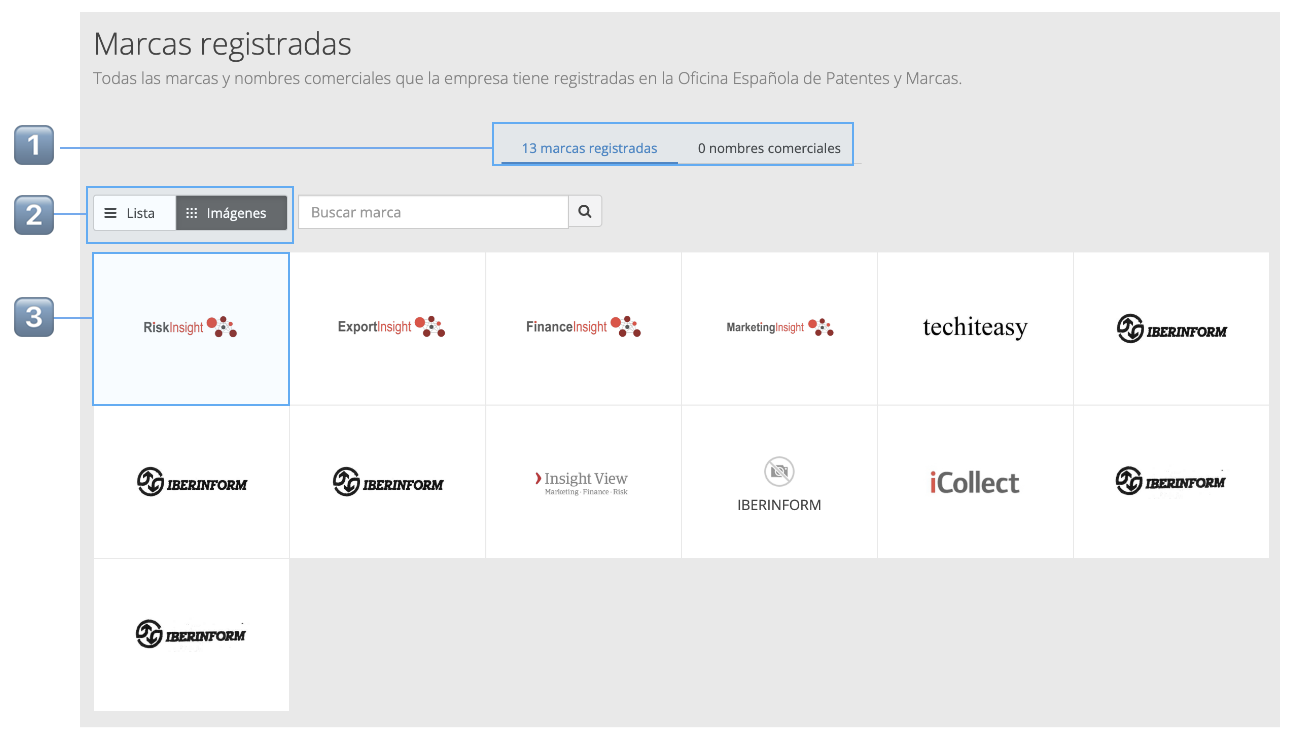
| 1️⃣ | Selector de Marcas o Nombres comerciales |
| 2️⃣ | Cambia entre la vista lista o imágenes |
| 3️⃣ | Haz clic en cualquier imagen (vista imágenes) o en el nombre de la marca (vista listado) para ver los detalles de cada marca |
_______
BORME
Esta sección incluye
- Información registral, objeto social, fecha de constitución y evolución del capital social
- Timeline con todas las publicaciones realizadas en el Boletín Oficial del Registro Mercantil (BORME)
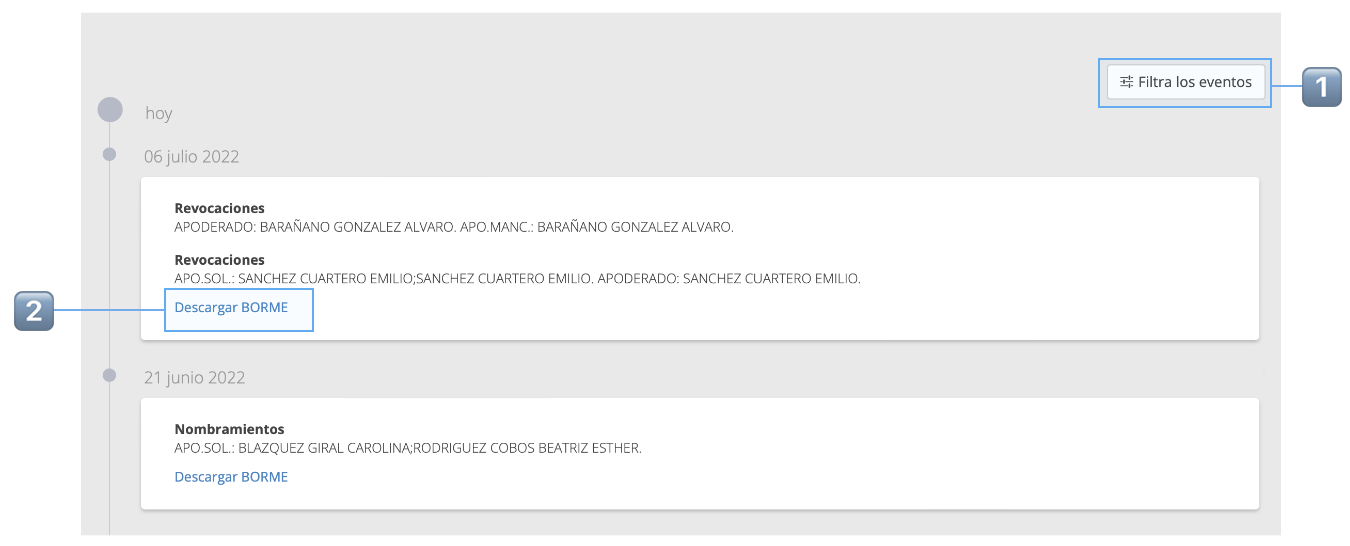
| 1️⃣ | Filtra por el tipo de evento publicado |
| 2️⃣ | Descarga el PDF del BORME del día en el que aparece la publicación |
_______
Más información
Esta sección está disponible para empresas de determinados países en los que disponemos de información adicional. Es posible que contenga datos relativos a secciones existentes en el informe, pero al no venir estructurada del mismo modo se agrupa en esta sección.
_______
Qué tienes contratado
Resumen de la información de la empresa que tienes contratada, con la opción de ampliar tiempo, opciones y activar la renovación automática, recomendado para empresas relevantes para ti.
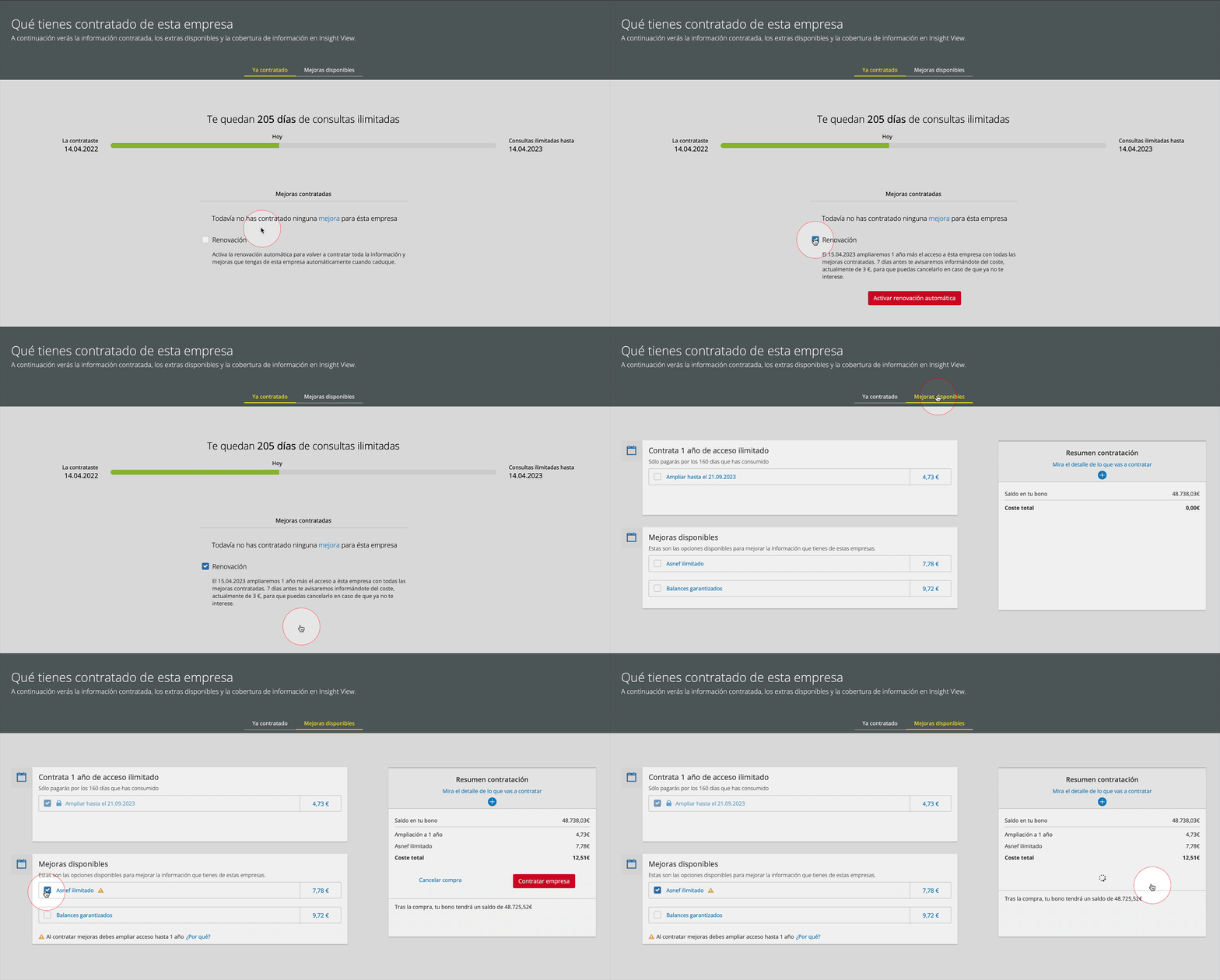
- La página "Ya contratado" te muestra lo que has contratado, el tiempo restante de consultas ilimitadas y te ofrece la opción de renovar automáticamente la contratación al finalizar el periodo.
- Haz clic en mejoras disponibles y amplía la información contratada si así lo deseas.